Troubleshooting
Common issues and how to resolve them.
Lima VM Issues
Lima VM won't start
Try: Settings → Docker → Restart Lima VM. If that fails, reset the VM completely from Settings → Docker → Reset Lima.
Docker commands are slow
Increase VM resources: Settings → Docker → CPU/Memory allocation. Restart after changes.
Connection Issues
Can't connect to Docker
1. Check menu bar icon is green. 2. Try restarting Lima VM. 3. Ensure no other Docker runtime is conflicting (Docker Desktop).
Kubernetes cluster unreachable
Verify kubectl works in Terminal: kubectl cluster-info. Check your VPN if connecting to remote clusters.
Homebrew Not Found After Installation
Setup guide still shows Homebrew as not installed
- After installing Homebrew, run the PATH commands shown in Terminal
- For Apple Silicon: Add
/opt/homebrew/binto your PATH - For Intel: Add
/usr/local/binto your PATH - Click "Refresh Status" in the Zenithal setup guide
Containers Not Showing
Containers screen is empty even though containers are running
- Check engine status — ensure the green dot is shown in the dashboard
- Click the refresh button in the Containers header
- Verify Docker is responding: In Terminal, run
limactl shell default docker ps
Compose Project Won't Deploy
Error when deploying a docker-compose.yml file
- Validate your YAML syntax (use Compose Intelligence with Pro)
- Ensure all referenced images are available
- Check port conflicts — are the required ports already in use?
- Verify file paths for volume mounts are valid
Security Scan Fails
Image scan shows error or doesn't start
- Verify scanner is installed:
trivy --versionorgrype version - Update scanner databases:
trivy image --download-db-onlyorgrype db update - Ensure the image exists locally (pull it first if needed)
High Memory Usage
Mac is slow, Lima VM using too much memory
- Stop unused containers to free memory
- Check the Resource Monitor for per-container memory usage
- Prune unused images: use the Image Library cleanup tools
- Adjust Lima VM memory allocation in Lima configuration
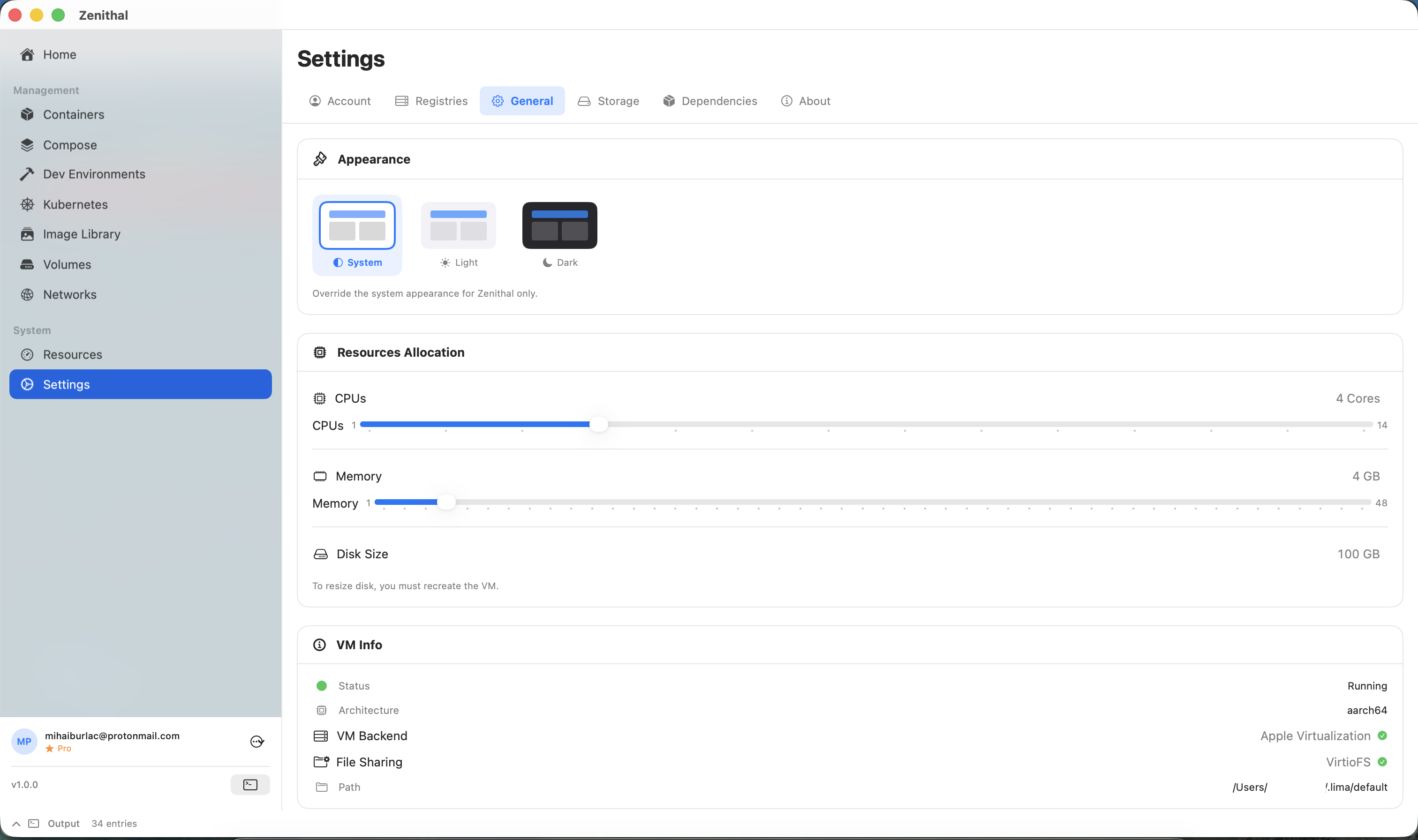
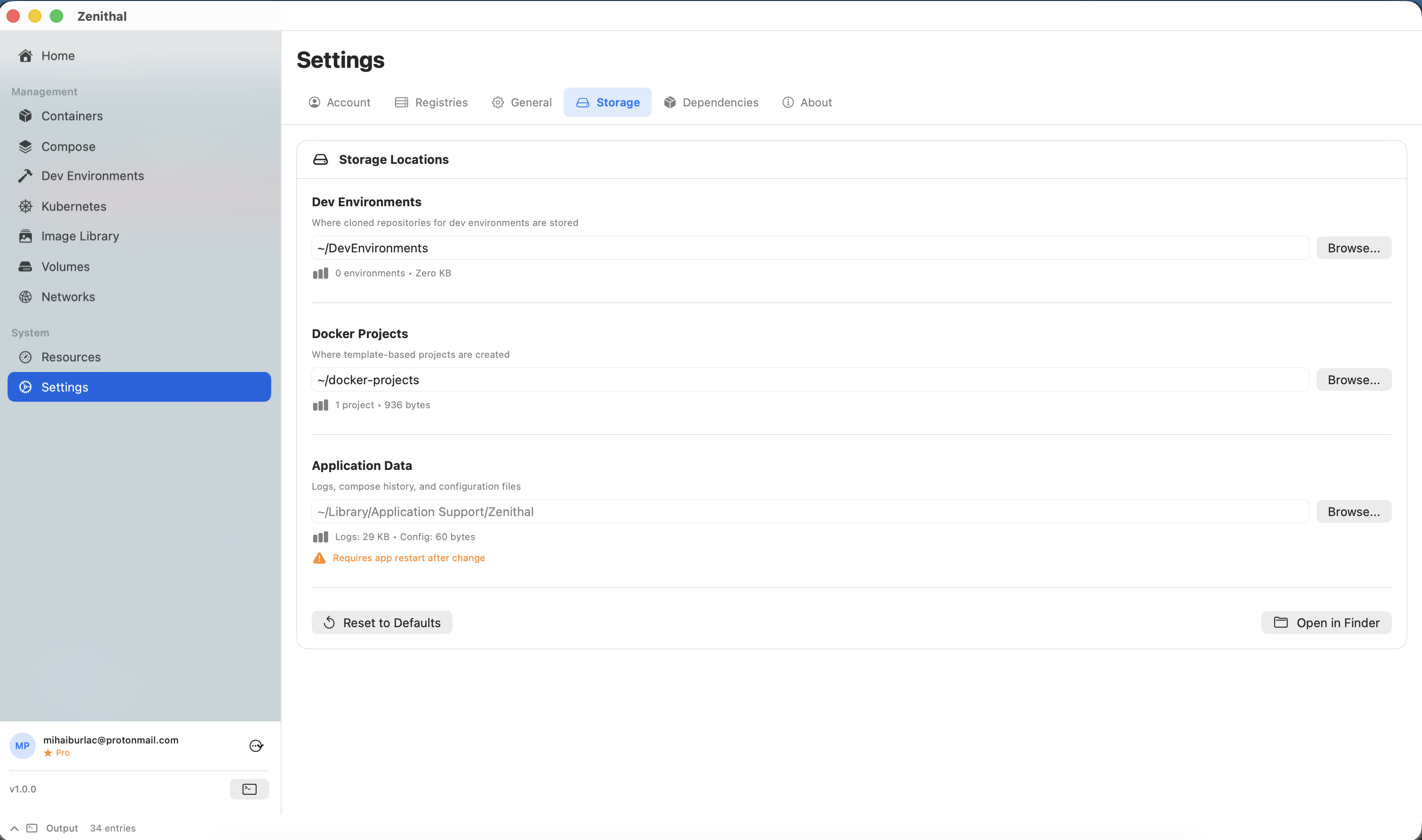
Disk Space Issues
App Won't Open / Crashes on Launch
Zenithal won't open or crashes immediately
- Ensure you're running macOS 13.0 or later
- If macOS blocks the app: Go to System Settings > Privacy & Security and allow Zenithal
- Try deleting the app preferences:
defaults delete mbu.Zenithal - Reinstall from the latest DMG
License Issues
Subscription not showing in app
Make sure you're signed in with the same account you used to purchase on the website. Check your internet connection. Try signing out and back in. If issues persist, contact support.
Maximum devices reached
Sign out on unused devices from Settings → Account, or contact support to reset your device list.
Get More Help
Still having issues? Contact our support team with:
- Zenithal version (Settings → About)
- macOS version
- Steps to reproduce the issue
- Any error messages